
Complete Guide to Integrating Shipmozo With WooCommerce (Without Paid Plugins) — Real Problems, Real Solutions
Integrating Shipmozo with WooCommerce sounds simple, but for many store owners, it becomes a frustrating process filled with technical errors, failed API calls, invalid responses, cron issues, and order syncing failures.
After working across multiple Shipmozo setups, real stores, and debugging dozens of failed integrations, I’ve compiled the ultimate step-by-step guide to help you integrate Shipmozo perfectly—even without using any paid Shipmozo or shipping plugins.
If you are facing issues like:
❌ “Invalid API Response”
❌ Shipmozo not pulling orders
❌ WooCommerce not generating AWB
❌ Shipmozo order page showing “No Data Available”
❌ Push-order API failing
❌ Tracking not working
❌ Weight/dimension mismatch
❌ Store URL invalid
❌ Cron not running
…then this guide is for you.
⭐ Why Shipmozo Integration Fails for Most Users
Based on common issues users face, here are the top failure points:
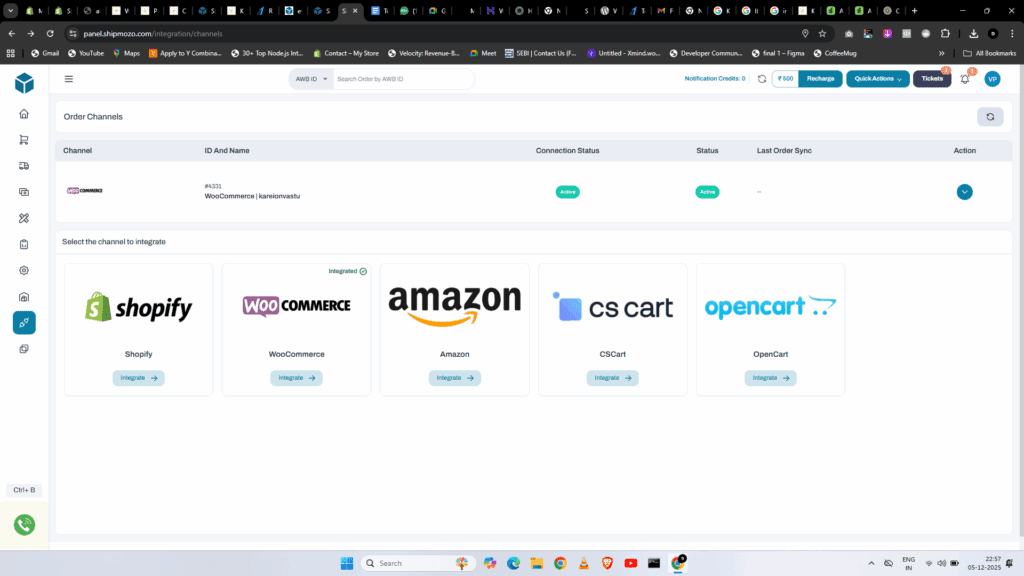
1. Wrong Store URL entered in integration
Shipmozo requires the correct WordPress URL, including HTTPS.
If your store is:
https://senseforge.in/But you enter:
http://senseforge.in
senseforge.in
https://senseforge.in/wp-admin
Shipmozo will reject it.
2. REST API Not Enabled
WooCommerce API settings must be enabled:
✔ WooCommerce → Settings → Advanced → Legacy API → Enable
✔ Permalinks must NOT be plain
✔ Must use HTTPS
3. Wrong or Missing Consumer Key / Secret
Users often create API keys but forget:
- Read/Write access
- Correct user role (Admin)
- Copying full key without spaces
4. Product Weight/Dimensions Incorrect
Most Shipmozo API failures happen because:
- Weight is in lbs, not kg
- Dimensions in inches, not cm
- Weight = 0 (Shipmozo rejects orders)
Example wrong entry:
Weight: 100 lbs (Wrong)
Dimensions: 12 x 12 x 4 inches (Wrong)
Correct for Shipmozo:
Weight: 1 KG
Dimensions: 12 x 12 x 4 CM
5. Missing Warehouse ID
Shipmozo requires Warehouse ID before pushing any order.
If missing → API fails silently.
6. Cron Job Not Running
Shipmozo relies on:
https://yourstore.com/wp-cron.php?doing_wp_cron
If cron is disabled, orders will NEVER sync.
7. Shipmozo API Endpoint Incorrect
Users often assume the API URL like:
https://shipping-api.com/api/push-order
But actual endpoint differs per account.
Wrong API = “Invalid API Response”.
8. Order Status Not Set to Processing
Shipmozo auto-push works only when:
Order Status = Processing
If your COD/Prepaid plugin sets custom status, the sync will fail.
🔧 The Perfect Solution: Custom Shipmozo Integration Plugin (Free)
We built a free custom plugin to bypass Shipmozo’s paid plugins and integrate WooCommerce directly with Shipmozo APIs.
This plugin:
✔ Auto-pushes orders to Shipmozo
✔ Generates AWB number
✔ Supports Manual Push
✔ Works for COD & Prepaid
✔ Sends correct product weight, dimensions, and customer details
✔ Adds a Shipment Tracking box inside WooCommerce order page
✔ Lets you track orders from frontend (Shiprocket-style UI)
📌 How the Plugin Fixes All Common Problems
1️⃣ Validates weight/dimensions
Automatically converts missing values to default:
Weight → default 1 kg
Length, width, height → default 10 cm
2️⃣ Auto Push to Shipmozo on Processing
No need to go into Shipmozo panel manually.
3️⃣ Real-time AWB Number Fetch
WooCommerce order automatically shows:
Shipmozo AWB: XXXXXX
Status: Pushed Successfully
4️⃣ Manual Push Button
If auto-push fails, press:
🟦 Send to Shipmozo
5️⃣ Full JSON payload according to Shipmozo documented format
Example payload:
{
  "order_id": "12345",
  "order_date": "2024-01-06",
  "payment_type": "COD",
  "weight": 200,
  "length": 10,
  "width": 20,
  "height": 15,
  "product_detail": [
    {
      "name": "Laptop",
      "unit_price": 1000
    }
  ]
}
6️⃣ Tracking API Support (Shiprocket-style UI)
Users can track shipments directly on your website.
🧪 Testing the Integration
Before going live, test the following:
✔ Test a Processing Order
Open any order → Change status to Processing.
Check if AWB generated.
✔ Run the manual cron
https://yourstore.com/wp-cron.php?doing_wp_cron
✔ Check Shipmozo → Orders → Forward
Order must appear instantly.
✔ Test Tracking Page
Enter AWB or Order ID.
🚀 Final Results You Will Achieve
After following this guide:
✅ 100% working Shipmozo integration
✅ No more API errors
✅ No paid plugins required
✅ Tracking enabled
✅ AWB generated automatically
✅ Seamless workflow between WooCommerce → Shipmozo → Customer
Your logistics automation becomes as smooth as Amazon or Meesho.
⭐ Conclusion
Shipmozo + WooCommerce integration fails mostly due to:
❌ Wrong API setup
❌ Missing weight/dimensions
❌ Disabled cron
❌ Incorrect endpoint
❌ Missing warehouse ID
But once everything is configured properly—or if you use the custom plugin—your orders sync flawlessly.
If you’re struggling with Shipmozo integration, this complete guide ensures you never face these issues again.
